
Creating background design


Now we are going to share our today's tutorial of creating background-
Step 1: Open an art board for the background design

Step 2: Place a rectangular on the art board size and paste it blue color as shape color

Step 3: Choose sky blue color on the fill color palette and select mesh tool and drag the cursor exact middle point of the rectangular. You will see a light gradient effect on the artboard shape

Step 4: Draw a shape like the image with pen tool with default color

Step 5: Select both the shape and select basic shape though it will nice rounded shape

Step 6: Again selecting shape choose the uniform as like image below and must stroke need to be 10pt

Step 7: Now you need to change the color of the default color to a white stroke color , doing fill color null

Step 8: Go to object > path > outline stroke to selecting stroke or converting stroke as a shape
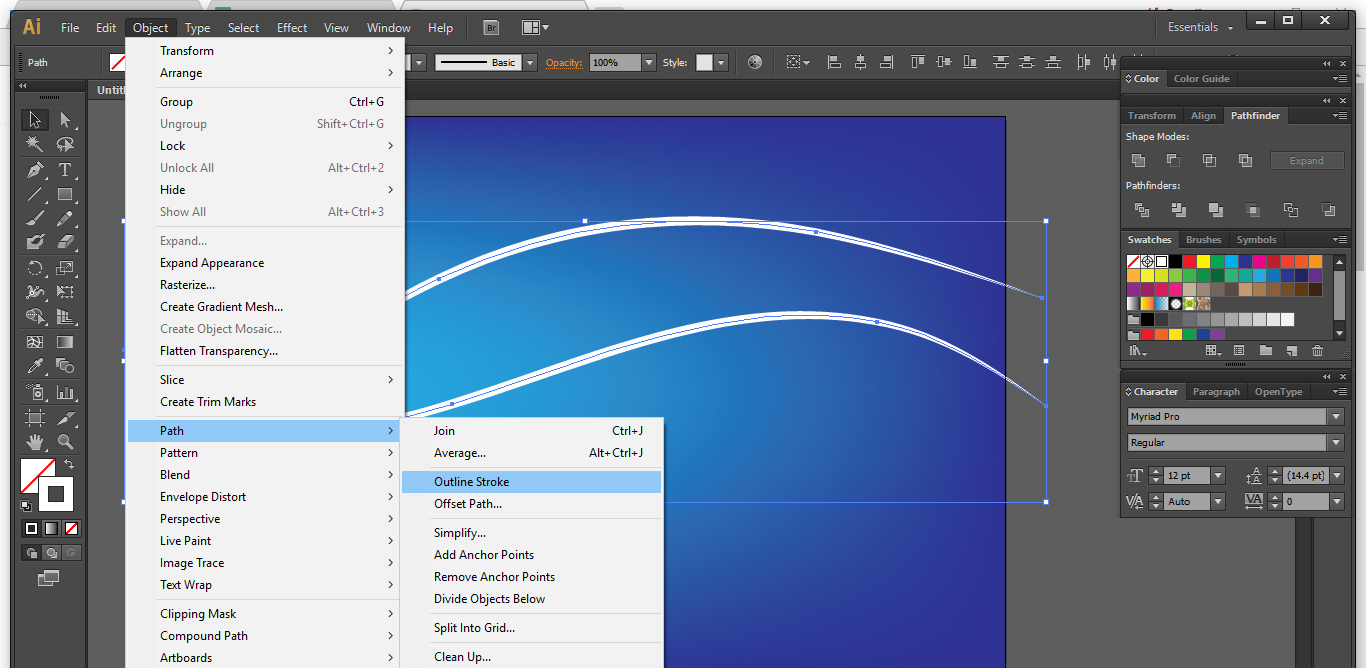

Step 9: After creating the shape as a image go to effect > stylize> outer glow

Step 10: change into white color mode- normal and blur as your shape needs

Step 11: here we can see the output after applying outer glow

Step 12: Draw a shape with pen tool again likes as image below, on top and bottom of already existed shape

Step 13: go to object > blend > make to apply blend effect

Step 14: Double click on the blend tool to bring up a popup box where you need to identify the specific steps 20

Step 15: To change the specific steps color pattern go to stroke color and change the color as the image

Step 16: Draw rectangular on the art board size to cover up all the shapes under it

Step 17: select all shapes by clicking (ctrl+A)

Step 18: Go to object > clipping mask > make
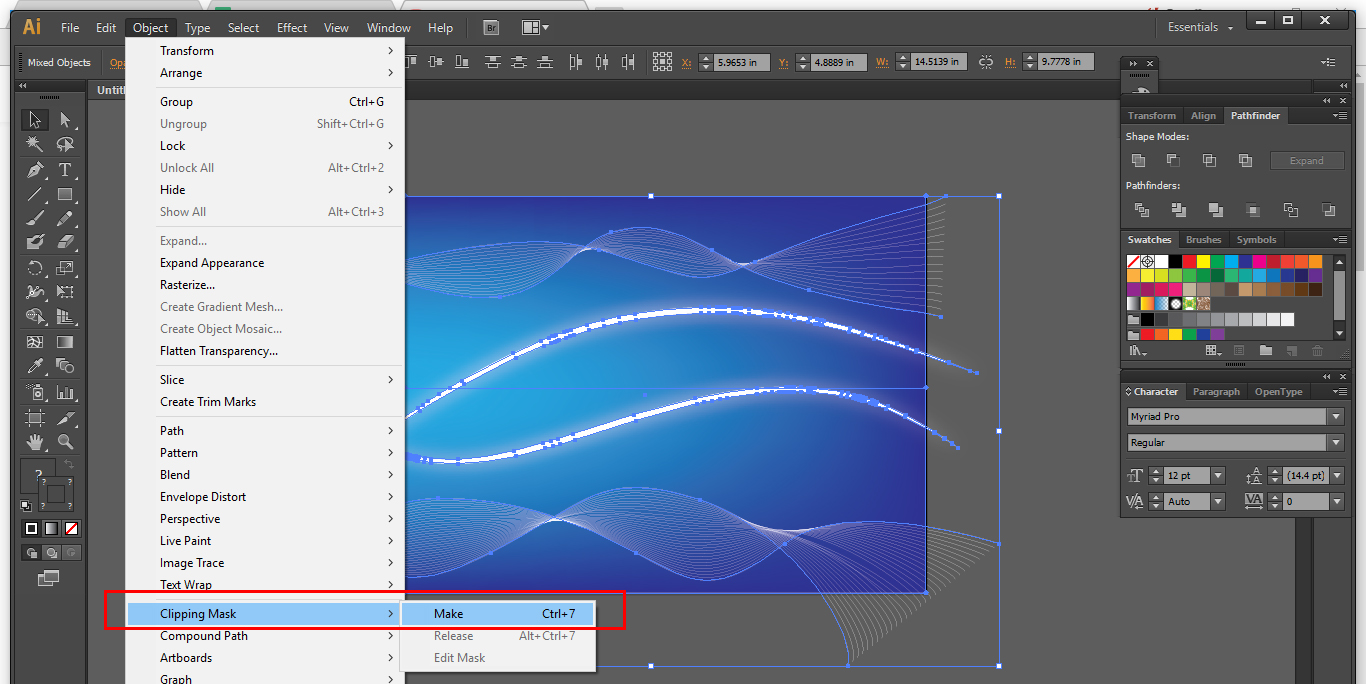
Step 19: we can see it already masked

Step 20: To save File > export

Step 21: Choose type JPEG

Thanks for visiting our blog
You can visit our another BLOG


