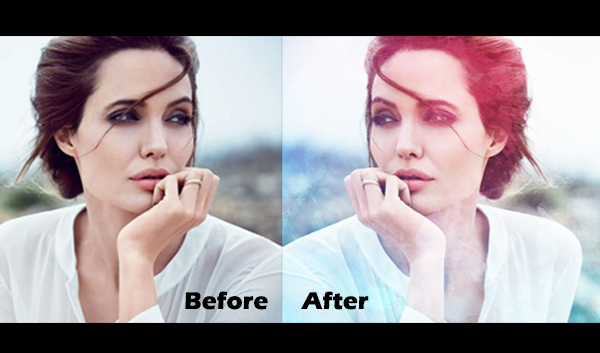
Combining Two different Image
Adobe Photoshop enable to do something extraordinary photo modification which we can’t do with any camera. The capability to merge or combine two dissimilar photos is not so easy to create .It turns something totally brand new image transformation. Blending method enable you to create new graphical era
So here we start our tutorial for blending two different images
Step 1: Place each photo on a separate layer
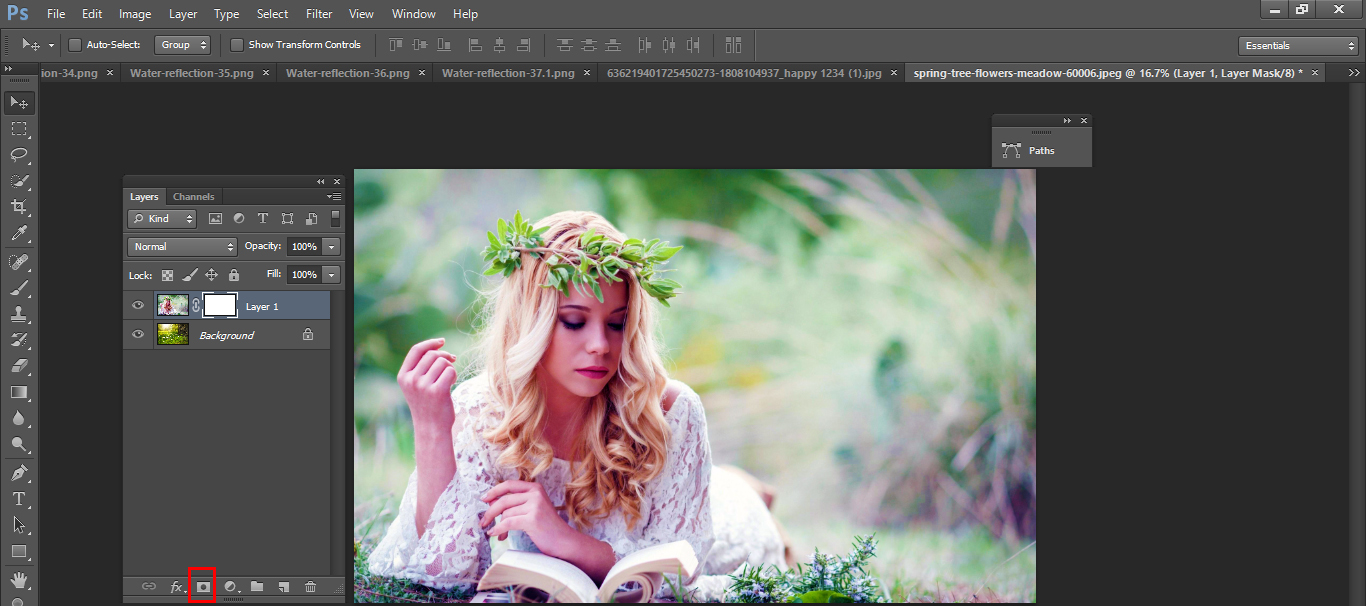
Step 2: Click on the top layer and add layer mask icon
Step 3: Select gradient tool, click arrow beside the gradient swatch
Step 4: Choose black and white gradient
Step 5: Draw a black –white gradient on layer mask from right to left
Step 6: Now blend the color perfectly
Step 7: If blending looks not natural use clone stamp tool to pick a sample from the any part
Step 8: then apply that sample on he portion you want to blend with obviously selecting that layer
Thanks for visiting our tutorial
You can visit our another BLOG