
Change Skin Tone with Photoshop
Image Adjustment Techniques. is to modify skin color from dark to fair or fair to dark.If we go "Adjustments" under the Photoshop Image menu, we can find few more tools for changing skin tone.

First create a duplicate layer of your photo and use a selection tool to select the skin. Then, use the Brightness/Contrast options to lighten or darken the skin.
Here we are going to apply the whole process of changing skin tone with photoshop
Step 1: open image on the Photoshop

Step 2: Select spot healing brush and heal the extra spots if exist
Step 3: Add new layer and select brush tool with soften and increase hardness about to 10%

Step 4: Choose white color to paste the brush on the dark ares of the skin


Step 5: Then changing blending option to soft light

Step 7: Select new layer and click on add layer mask

Step 8: Bring back the original color of the eye and eyebrows

Step 9: Select layer 1 and go to hue/adjustment layer to selective color


Step 10: Box will appear; choose white by default and adjust cyan , magenta , yellow and black together

Step 11: Select 3 layers on the layer panel and merge it together

Step 12: Select merge layer and duplicate the layer
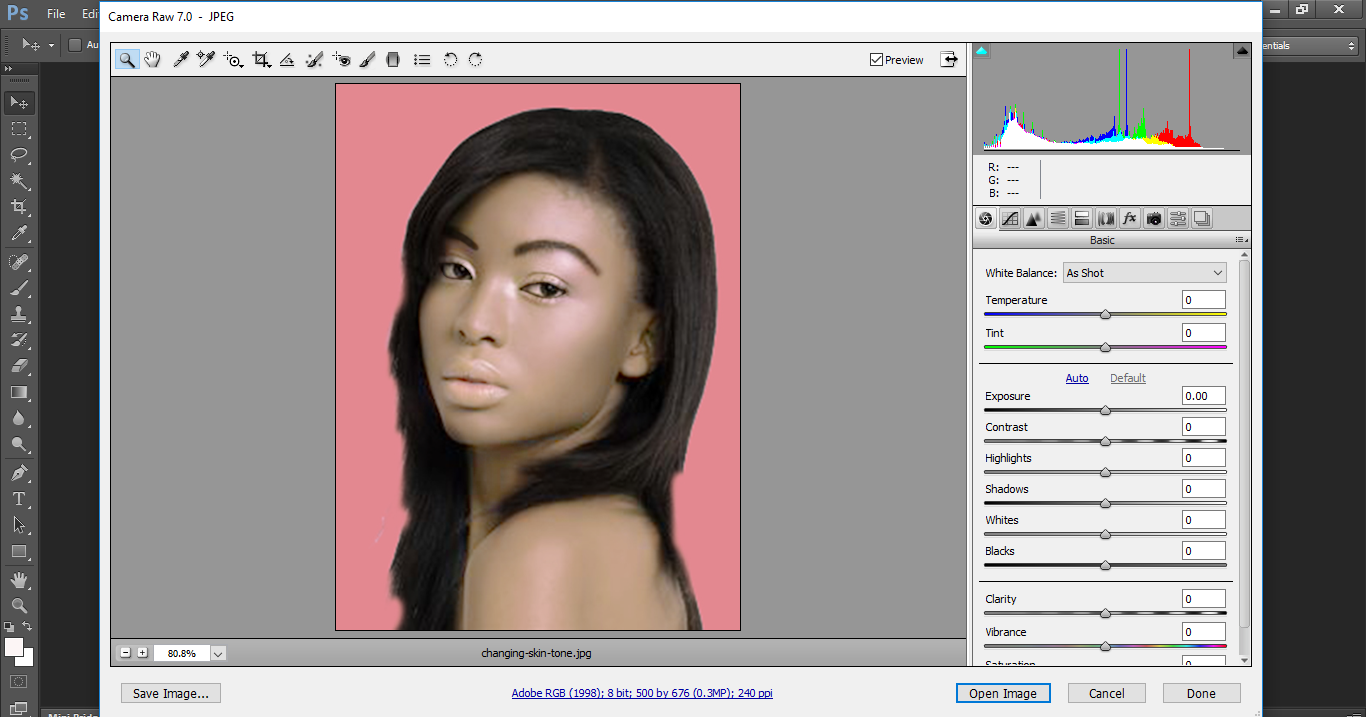
Step 13: Select image and open camera raw filter to adjust the skin color more perfectly

Step 14: Open basic function and increase temperature and tint ; keep moving vibrance to see the correct adjustment

Step 15: Choose detail and move luminance to might to make the color more glazy

Step 16: Go to split toning and increase hue to brightness skin

Step 17: Again layer mask the eye area of inside to bring back the original color

Step 18: Select brush and dodge tool ; change its opacity to low . change range to midtones

Step 19: Brush on the face area of the skin on the definite area to make the natural highlight

Step 20: Choose burn tool and change its exposure to 4% and retouch with it on the highlighted areas

Step 21: Add new layer on the layer panel and paste the red color on the lips

Step 22: Change blending option into multiply

Step 23: Decrease the opacity level of this layer

Thanks for visiting our tutorial
You can find out more photo editing blogs HERE


